Windows Service Installer#
Overview#
Microsoft Windows services enable to create long-running executable applications that run in their own Windows sessions. These services can be automatically started when the computer boots, can be paused and restarted, and do not show any user interface. These features make services ideal for use on a server or whenever you need long-running functionality that does not interfere with other users who are working on the same computer.
This tutorial covers the steps involved to generate the exe file for the installation of oxd-server as service on Windows operating system.
Generate oxd windows executable installation file#
The important point to be noted here is that the exe file can be only generated in Windows OS. oxd team is working further so that in upcoming oxd release windows executable installation file can also be generated in Linux OS.
Prerequisites#
-
Windows OS
We can generate
exeonly on Windows OS. -
JRE 8+
Install JRE version 8 or higher. Set
JRE_HOMEenvironment variable on windows. -
Inno Setup
Download and install Inno Setup on Windows OS. Set
INNOSETUP_HOMEenvironment variable pointing to the home folder of Inno Setup installation (eg:C:\Program Files (x86)\Inno Setup 5).
Steps to generate EXE#
-
Clone oxd project from Github
If you have
gitinstalled, just open a console and run below command to clone the project.git clone https://github.com/GluuFederation/oxd.git -
Check the latest version of
commons daemon windows binariesat https://downloads.apache.org/commons/daemon/binaries/windows/ and update the version incommons-daemon.bin.versionproperty in${OXD_HOME}/oxd-server/pom.xml.<commons-daemon.bin.version>1.2.1</commons-daemon.bin.version> -
Issue the below command to build oxd project
mvn clean install -Dmaven.test.skip=true -P windows-buildDepending on connection speed and computer performance, it may take a couple of minutes to download all required dependencies and build the project.
-
Extract
oxd-server-distribution.zipgenerated in${OXD_HOME}/oxd-server/targetfolder. Change directory to thebinfolder inside the extracted zip file. -
Double click on
oxd-create-win-service-exe.batfile and this will generateoxd-server.exeoutsidebinfolder.
oxd installation using EXE file#
-
To install oxd using
exefile double click onoxd-server.exe. -
During installation first page that will appear will ask whether oxd should be installed as windows service or not. Select the checkbox to install
oxd as service.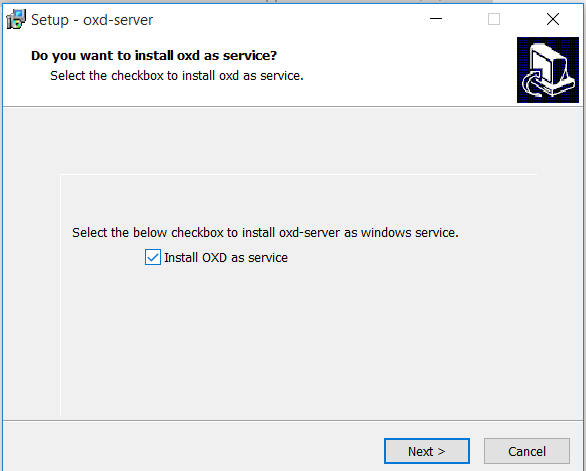
-
The second page will have license agreement which need to accepted before moving forward.
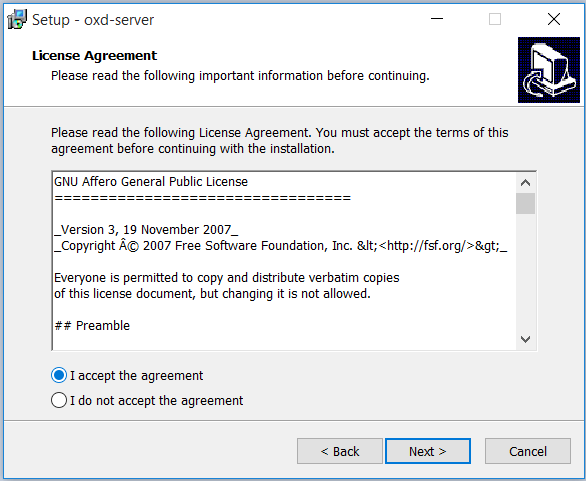
-
The final page will allow user to select installation directory of oxd server.
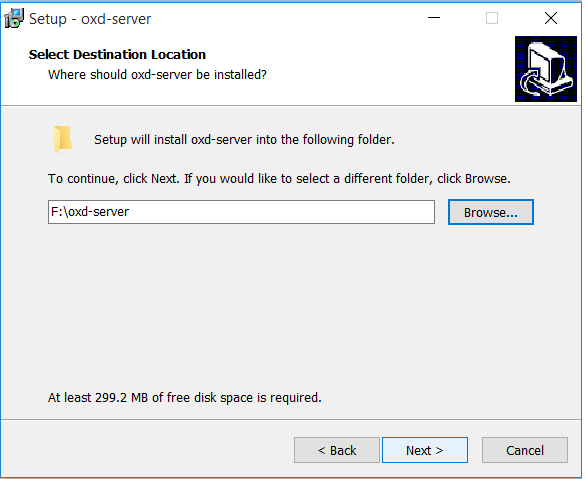
If installed as
windows servicethen the oxd server will start automatically after the windows machine is started and there is no need to start oxd manually.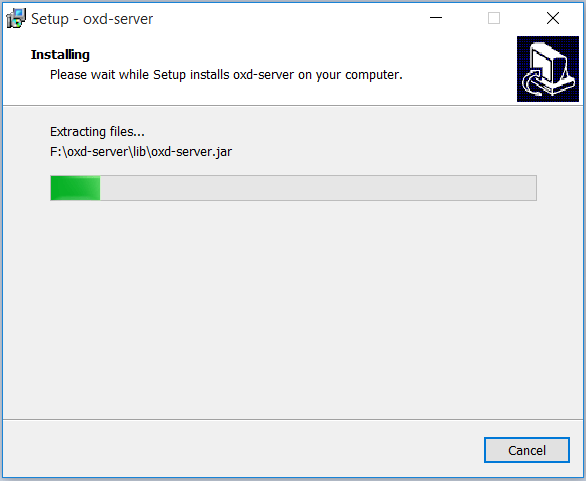
oxd uninstall#
-
The installed oxd can be uninstalled from
Control Pannel--> Programs-->Uninstall a program.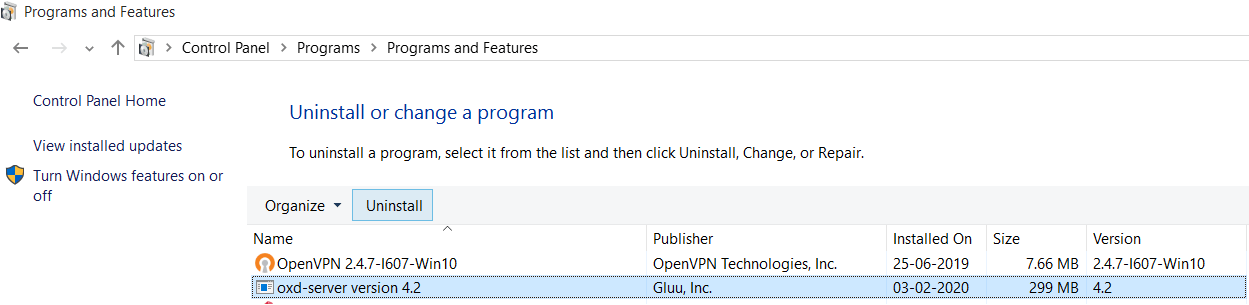
-
oxd can be also uninstalled using
unins000.exefile inside oxd installation directory (eg:D:\softwares\oxd-server\unins000.exe).